What is MiniMax H3 Reference to Video?+
MiniMax H3 Reference to Video combines a written prompt with uploaded images, video clips, or audio to guide a new video. You can use different assets for the subject, setting, movement, or sound, then explain how they should work together. References guide the result rather than guaranteeing an exact copy of the source material.
How is reference to video different from image to video?+
In the image-to-video workflow on this site, you provide a first frame and can add a last frame to guide the shot. Reference to video lets you combine assets with different roles, such as a character portrait, a location image, and a camera-movement clip. Choose it when you want to describe how several references should influence a new scene.
How can I use character and product images as references?+
Upload clear images that show the details you want to preserve, such as clothing, a product silhouette, materials, or colors. In your prompt, identify which image supplies the subject and which supplies the setting or style. Start with a few useful views, and check faces, labels, and logos in the output because small details can change.
Can I use a video reference for motion and camera movement?+
Yes. Add a short clip and explain whether it should guide the action, camera path, or editing rhythm. For example, ask for the camera movement from the clip while using an uploaded product photo for the subject. Avoid asking the model to borrow everything at once when the reference contains people or scenery you do not want in the result.
What can an audio reference control?+
An audio reference can provide context for the sound you describe, such as the mood of music, the rhythm of a scene, or an ambient sound. Explain how it should relate to the visible action and include any dialogue instructions in the prompt. Listen to the completed video to check timing and clarity; a reference does not guarantee an identical voice or soundtrack.
How many reference files can I upload, and what are the size limits?+
This generator allows up to nine images, three videos, and three audio files, with a combined maximum of twelve assets per request. Each image or audio file can be up to 10 MB, and each video can be up to 50 MB. These are upload limits, not a recommended asset count: begin with the references that have a clear role and add more only when needed.
How long can uploaded video and audio references be?+
Each video or audio reference must be between 2 and 15 seconds long. Uploaded video clips have a combined duration limit of 15 seconds, and uploaded audio files have their own combined limit of 15 seconds. For example, two 8-second video references exceed the video limit. Trim inputs to the relevant moment; these limits are separate from the generated video duration.
How should I write a MiniMax H3 reference prompt?+
Use the asset mentions in the prompt field to assign each upload a role, then describe the action, camera, lighting, and sound. For example: use the first image for the jacket and the second for the street; have the character walk toward the camera in soft evening light, with footsteps and quiet traffic. Keep instructions consistent with the references and make one focused change when refining a result.
Does MiniMax H3 Reference to Video support 2K output?+
Standard H3 in this generator offers 768P and 2K output. You can start at 768P to review composition and motion, then choose 2K for a new generation when you need a higher-resolution result. Resolution does not guarantee more accurate faces, text, or logos, so review those details separately. Available settings can differ when you select another model.
What output duration and aspect ratios can I choose?+
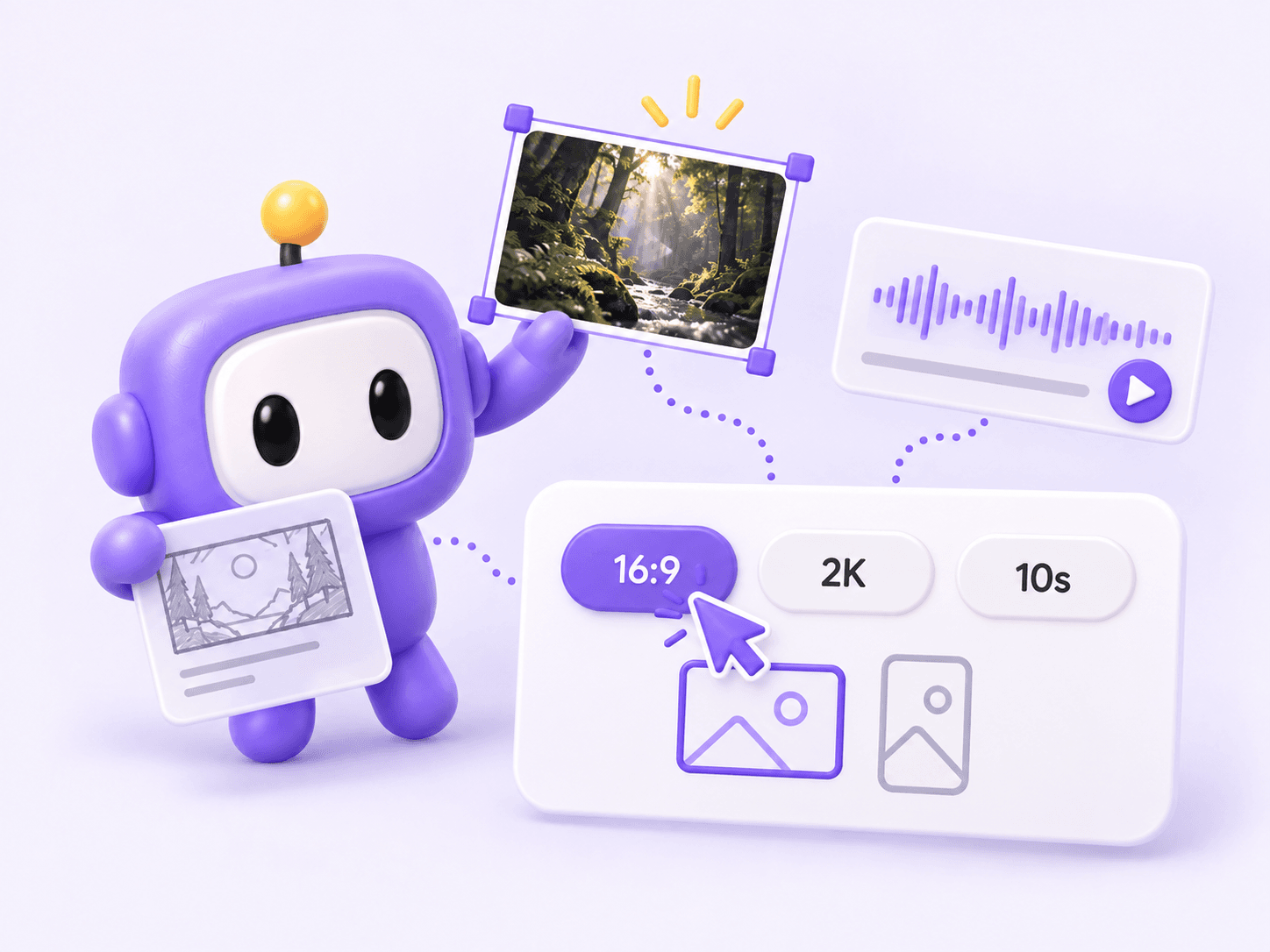
For standard H3 here, you can select an output duration from 5 to 15 seconds and one of six aspect ratios: 16:9, 9:16, 4:3, 3:4, 1:1, or 21:9. Choose a format for the intended placement, such as 9:16 for a vertical clip. The output duration sets the length of the new video rather than copying the length of an uploaded reference.
Can I reuse the reference-to-video examples on this page?+
Yes. Open an example and select Create with this example to load its prompt, available input images, aspect ratio, resolution, and duration into the generator above. Review the loaded materials and adjust the instructions before generating. Reusing an example gives you a starting setup; it does not guarantee the same video or automatically include reference files that are not provided with that example.
How can I improve character or product consistency?+
Use clear, compatible references and state which details matter most, such as the face, outfit, product shape, or material. Remove images that contradict those details and keep the requested action manageable within a short clip. After generation, check identity, proportions, text, logos, and continuity. If something drifts, simplify the references or revise the relevant instruction before trying another version.